Support
Twenty Miles - Walk the World
Browse the guide below to find answers. If you can't find what you need, get in touch and we'll help you out.
Contact support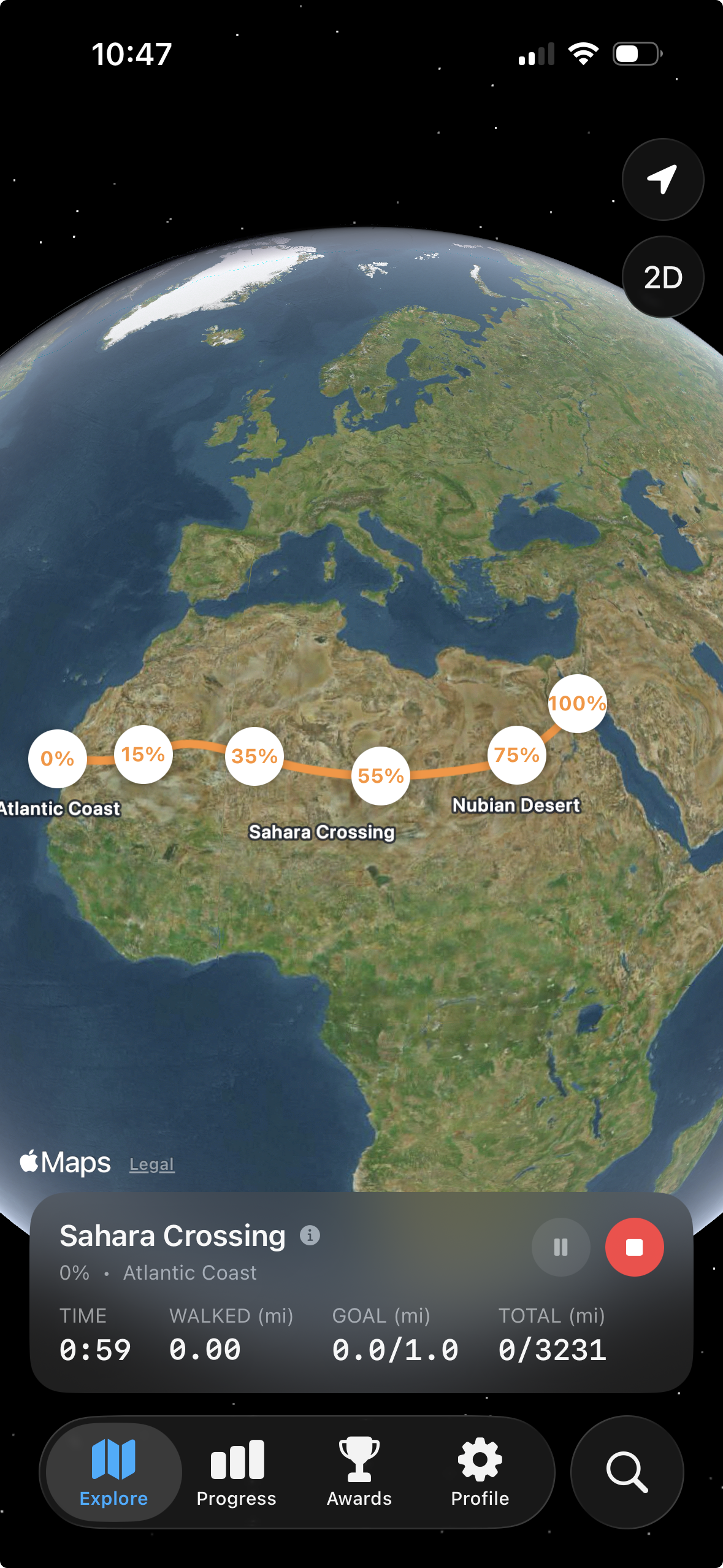

Expedition Tracking Screen
This screen displays your progress on a selected expedition. You can view your progress, stats, and journey across a 3D map.
- 1View your current expedition progress represented as a percentage along a route.
- 2Tap the play/pause button to start or stop your expedition tracking.
- 3Tap the stop button to end your current expedition.
- 4See your time elapsed, distance walked, distance to your current goal, and total expedition distance.
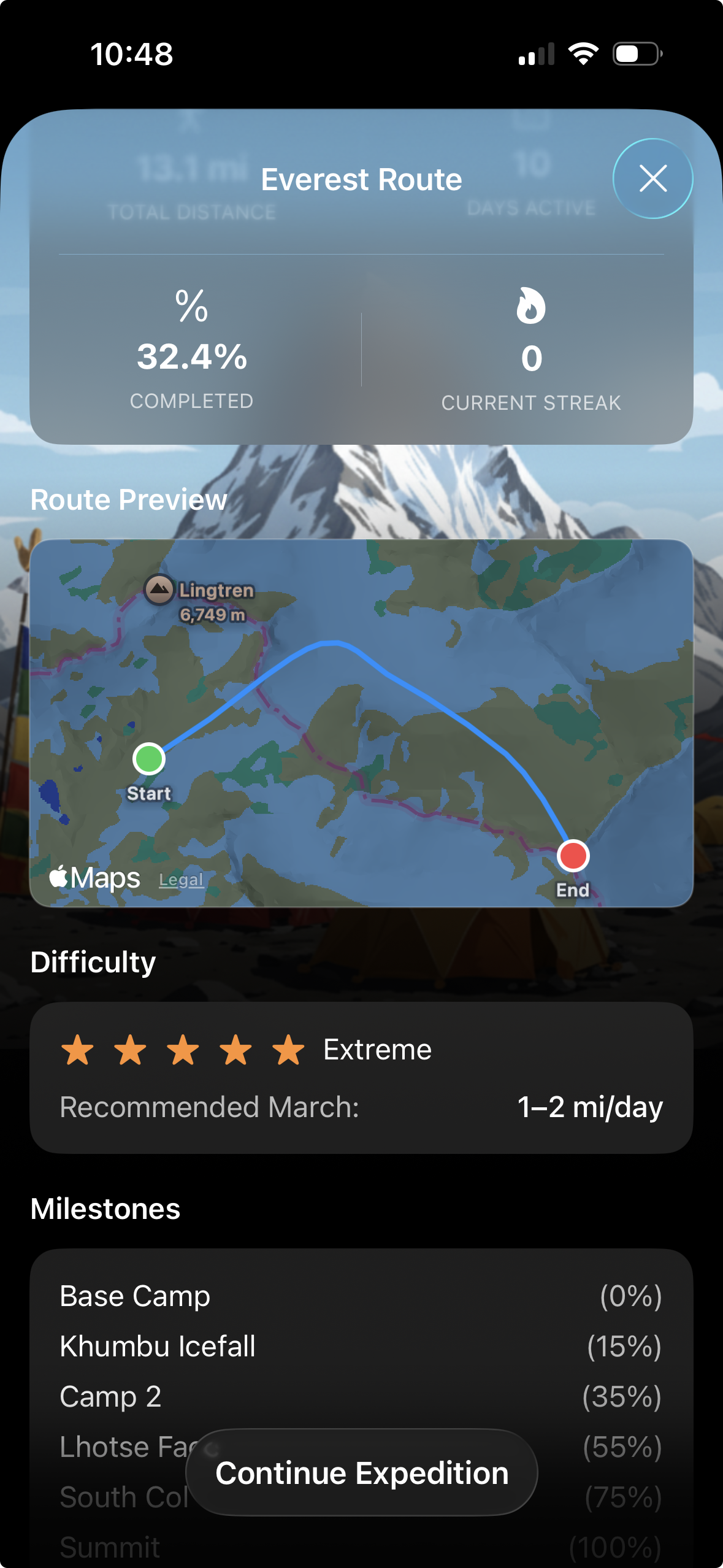
Expedition Details Screen
This screen provides an overview of the selected expedition, including your progress and route details. Access this screen by selecting an expedition from the main screen.
- 1Tap the X icon in the top right corner to close this screen and return to the main expeditions list.
- 2View the percentage of the expedition that you have completed so far.
- 3See a map displaying the route for your selected expedition, from start to end.
- 4Review the difficulty rating of the expedition, which is shown with star icons.
- 5See a list of milestones along your expedition route, and the percentage you have completed for each.
- 6Tap the "Continue Expedition" button to track your progress on the selected expedition.
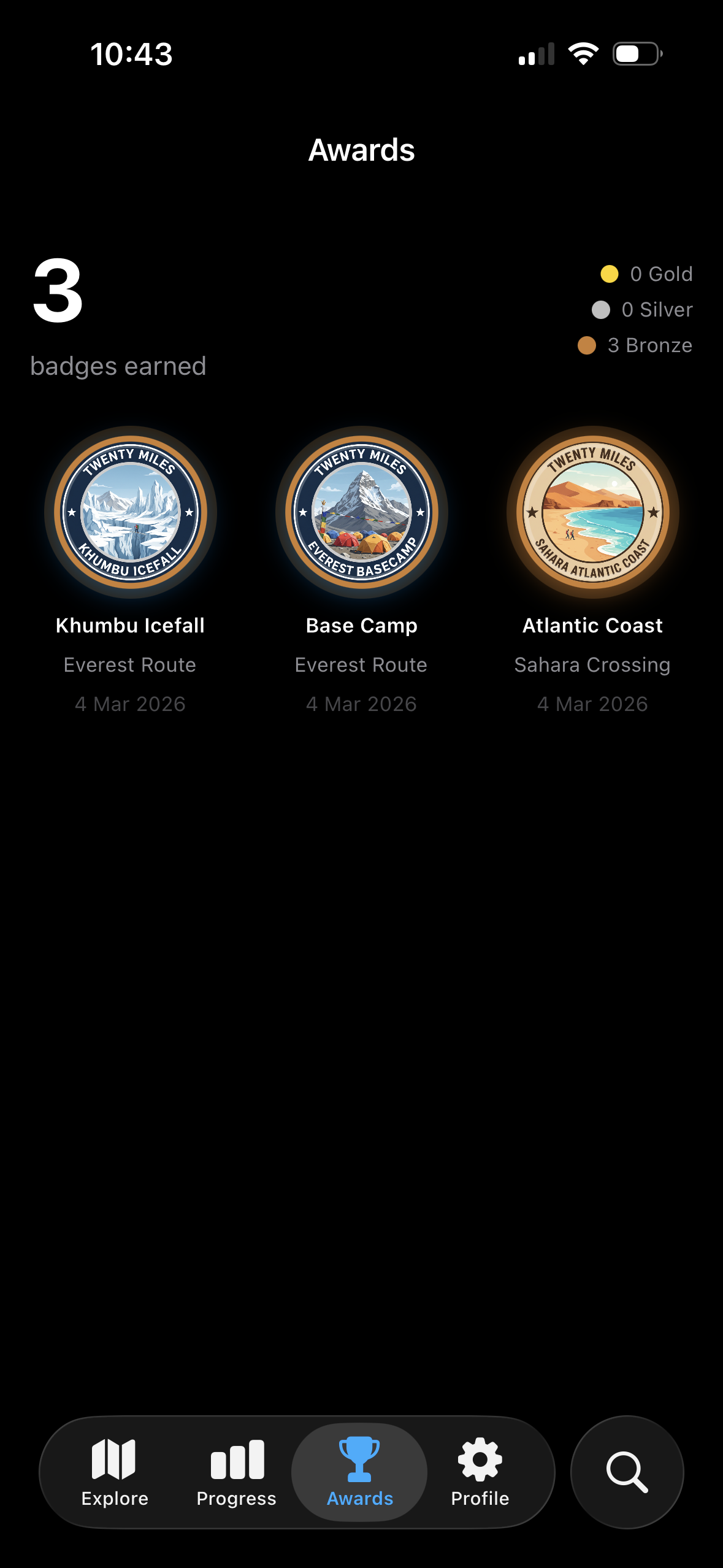
Awards & Badges Screen
This screen shows all of the awards and badges that you have earned for completing expeditions. You can view your progress and achievements here.
- 1The number on the upper left indicates how many badges you have earned.
- 2Review the key on the upper right to understand how many gold, silver, and bronze badges you have received.
- 3Tap a badge to view more details about the expedition and the date it was completed.
- 4The badges appear as circles with a landscape image in the middle and a colored border to indicate the level of award
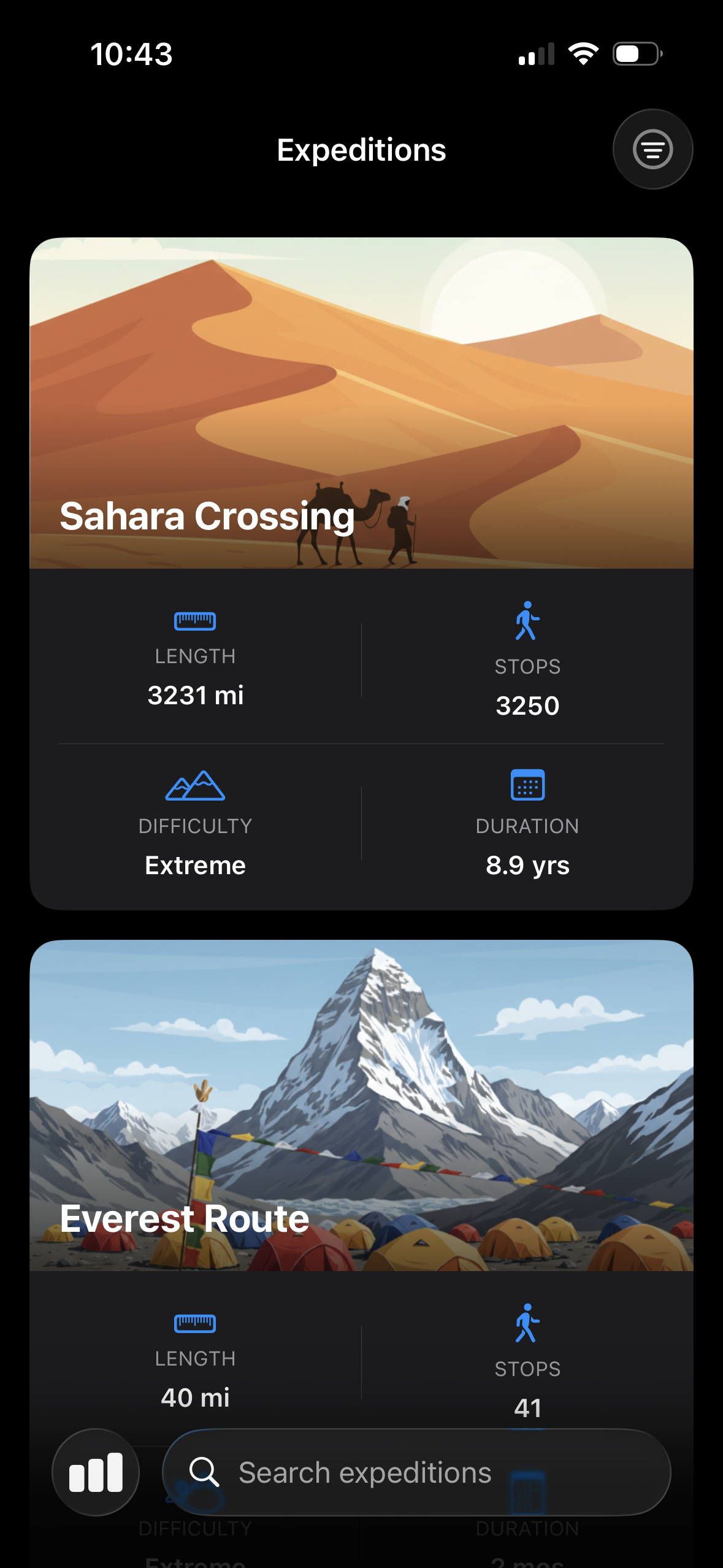
Expeditions List Screen
This screen displays a list of available expeditions you can embark on. Tap on an expedition to view more details.
- 1Tap an expedition card to view its details, like a map and milestones.
- 2Each expedition card displays the expedition's length, number of stops, difficulty, and duration.
- 3Use the search bar to quickly find specific expeditions by name.
- 4Tap the filter icon in the lower left to adjust display settings for your list.
- 5Use the menu icon in the upper right to view account options and settings.
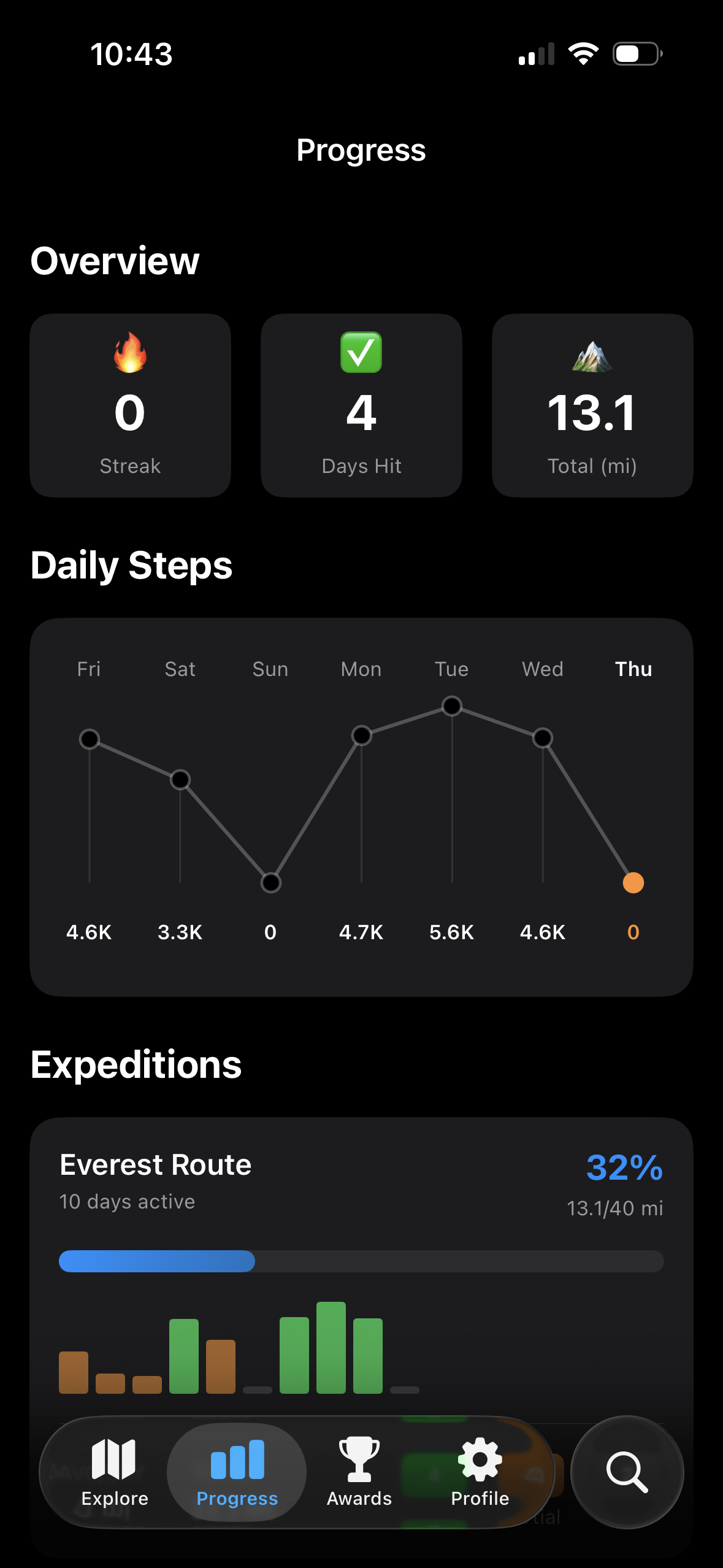
Progress Tracking Screen
This screen gives you an overview of your recent activity, including steps, expeditions, and achievements. Use it to see how you're progressing towards your fitness goals.
- 1View your current streak of consecutive days meeting your step goal, and the total number of days you've hit your goal.
- 2Check the total distance you've traveled in all expeditions.
- 3Examine your daily step count over the past week to visualize your consistency.
- 4Monitor your progress on active expeditions and how much further you have to go.
- 5Tap the 'Explore' icon to discover new expeditions and walking routes.